Features
MailLighter provides 6 features, all accessible from a dropdown menu in Outlook’s ribbon. Each feature targets a specific type of email clutter.

Remove Images
Strips all inline images (<img> tags) from the email body. Useful when forwarding emails that contain logos, banners, signatures with images, or embedded screenshots.
What it removes:
- Inline images (embedded in the HTML body)
- Image signatures
- Marketing banners
- Tracking pixels
What it keeps:
- All text content
- Attachments (use “Remove Attachments” for those)
- Email formatting and structure
ℹ️ Confirmation: A confirmation shows the number of images removed and the space saved.
Keep 2 Replies
Trims the email conversation to keep only the last 2 replies. This is perfect for long email threads where only the recent exchanges matter.
What it removes:
- All replies beyond the 2 most recent ones
What it keeps:
- The current message
- The previous reply
- All content within those 2 messages (images, formatting)
ℹ️ Confirmation: A confirmation shows the number of replies detected and the space saved.
Remove Attachments
Removes all attached files from the email, excluding inline images embedded in the body. Ideal when you need to forward just the message content without the attached files.
What it removes:
- All file attachments (PDF, Word, Excel, etc.)
What it keeps:
- The full email body (text + inline images)
- Inline images (embedded in the HTML body)
- Reply chain
ℹ️ Confirmation: A confirmation shows the number of attachments removed and the space saved.
Full Cleanup
Applies all cleanup operations at once: removes images, removes attachments, and keeps only the last 2 replies. This is the quickest way to fully clean an email before forwarding.
Equivalent to running:
- Remove images
- Keep 2 replies
- Remove attachments
Detailed summary: After cleanup, a notification displays a detailed report:
✅ Full cleanup completed — Images: 3 (150 KB) | Attachments: 3 (252.4 KB) | Replies: 2 | Total saved: 402.4 KBEach category shows the count of items processed and the space saved when applicable. For replies, the reduction is displayed (e.g. 5 → 2).
Keep Selection Only
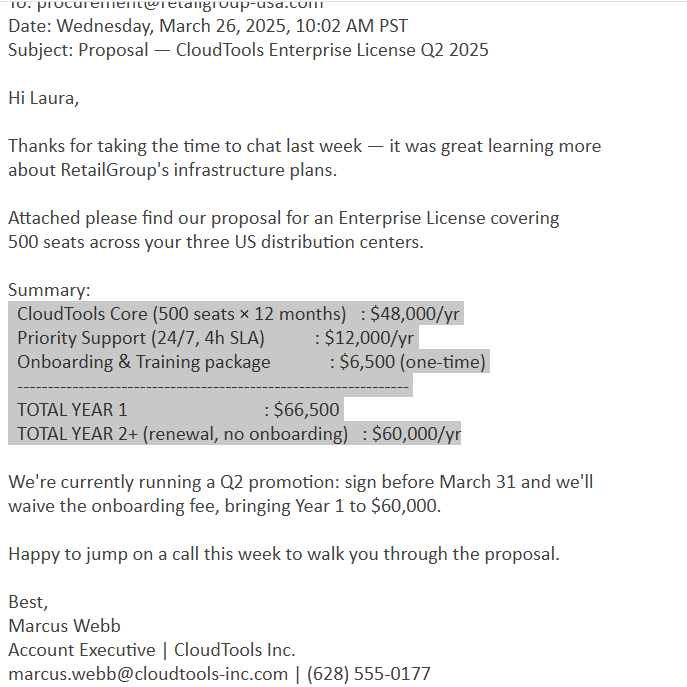
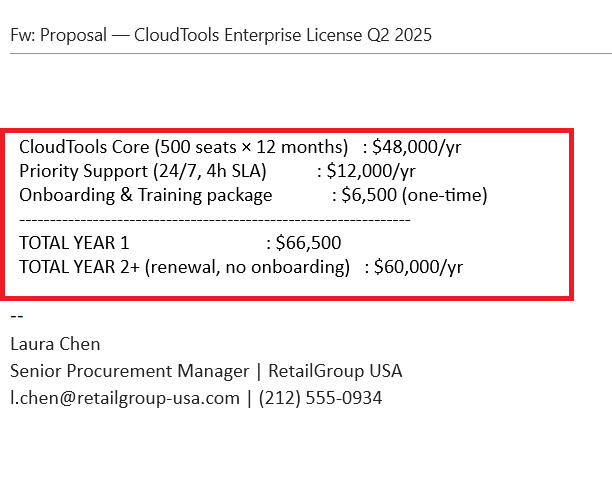
Keeps only the text you have manually selected in the email, removing everything else. This gives you full control over exactly what content to retain.
How to use:
- Open or reply to an email
- Select the text you want to keep (it can contain images)
- Click Keep Selection Only from the MailLighter dropdown
What it removes:
- Everything outside your selection
What it keeps:
- Your selected text, with formatting preserved
Settings
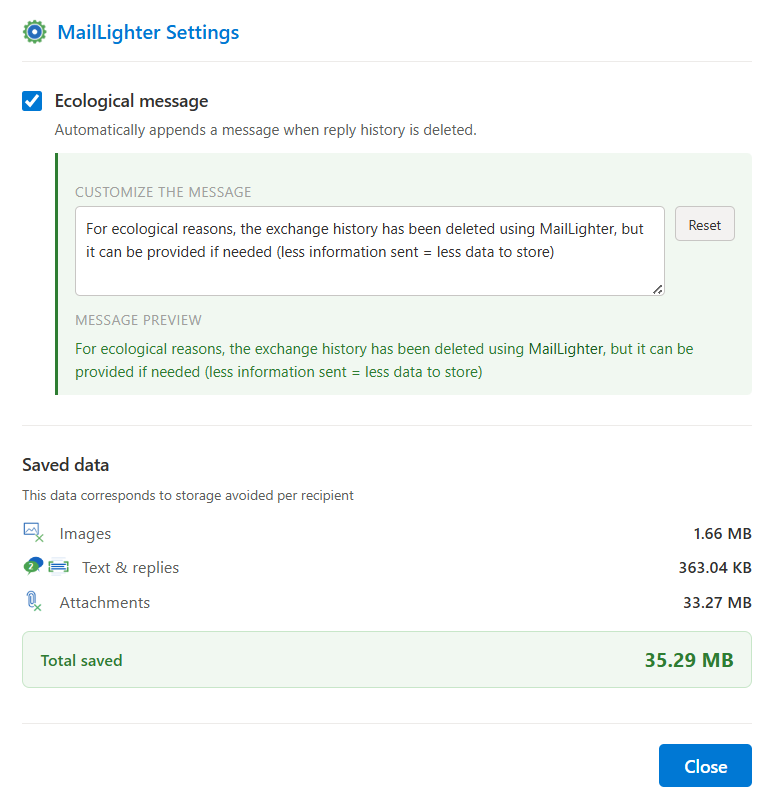
Opens the MailLighter preferences panel. Two settings are available:
Eco message
Adds a short ecological footer to your outgoing emails. You can enable or disable it, and customize the message text. A live preview is shown before saving.
My savings
Tracks the cumulative data removed across all your cleanup sessions:
- Images removed
- Attachments removed
- Reply chains trimmed
- Total saved
Savings are stored locally on your device and persist across sessions.
Command Summary
| Command | Images | Attachments | Reply chain |
|---|---|---|---|
| Remove images | ✅ Removed | Kept | Kept |
| Keep 2 replies | Kept | Kept | ✅ Trimmed |
| Remove attachments | Kept | ✅ Removed | Kept |
| Full cleanup | ✅ Removed | ✅ Removed | ✅ Trimmed |
| Keep selection only | Per selection | Kept | Per selection |
ℹ️ Settings opens the preferences panel — it does not act on email content.